FAQ
HyperSpin install fails or finishes with missing files. What should I check?
Check the HyperSpin folder path and permissions first. Most install issues come from HyperHQ writing to the wrong folder or Windows blocking write access.
- Open Settings > Paths in HyperHQ.
- Confirm the HyperSpin path points to the folder where HyperSpin should install.
- Select Check Permissions.
- Fix every failed path before continuing setup.
- Make sure the HyperSpin folder is not read-only and does not have partial permissions.
- On Windows, open Properties > Security for the HyperSpin folder and give the account running HyperHQ full control.
- On a dedicated cabinet or trusted shared local setup, set Everyone to full control for the HyperSpin folder.
HyperHQ is not portable. HyperHQ stores its working folder under the configured HyperSpin folder. If Settings > Paths points to the wrong folder, installs, downloads, plugin setup, and settings changes fail.
Where do I turn RetroArch bezels on or off?
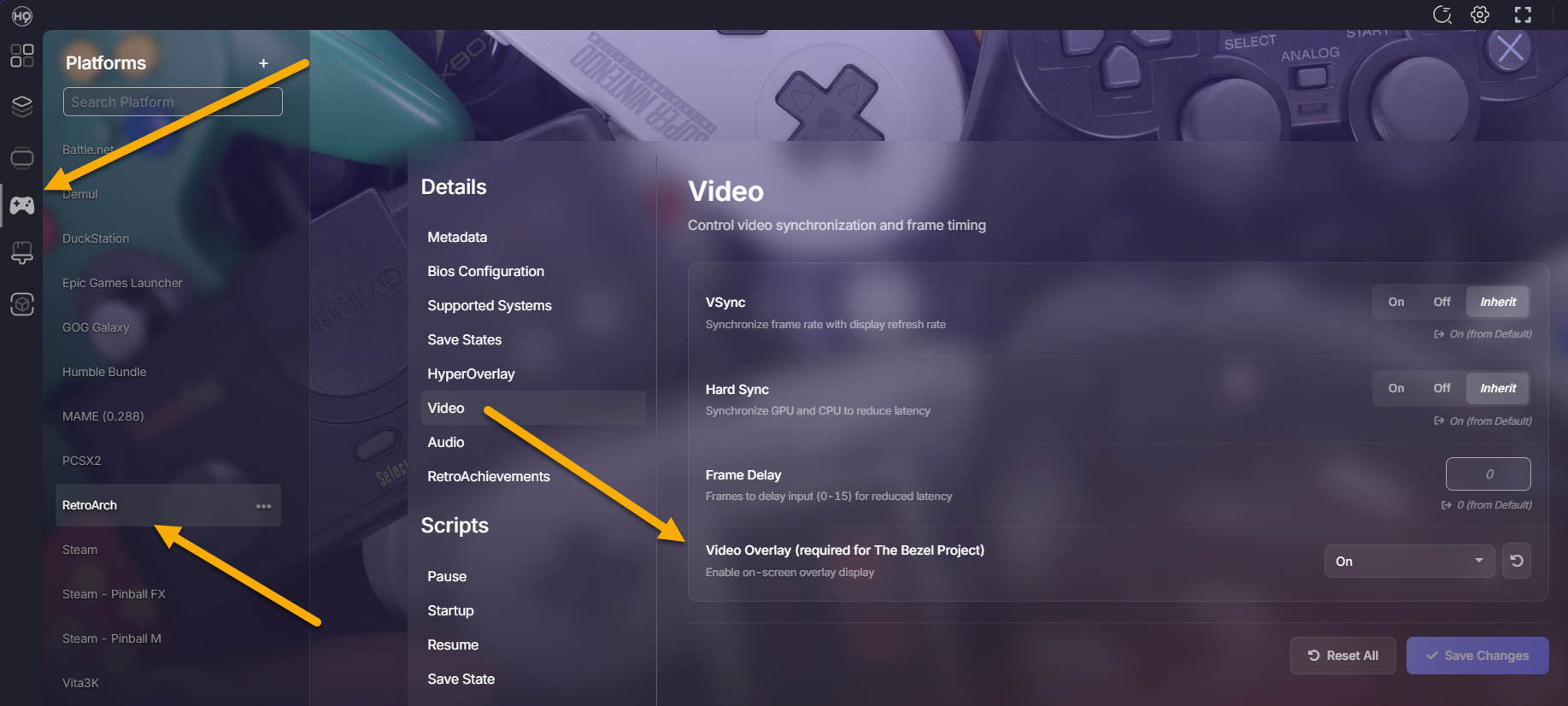
RetroArch bezels use RetroArch video overlays. In HyperHQ, use Video Overlay (required for The Bezel Project).
For every system using RetroArch:
- Open Platforms.
- Select RetroArch.
- Open Details.
- Open Video.
- Set Video Overlay (required for The Bezel Project) to On or Off.
- Select Save Changes.
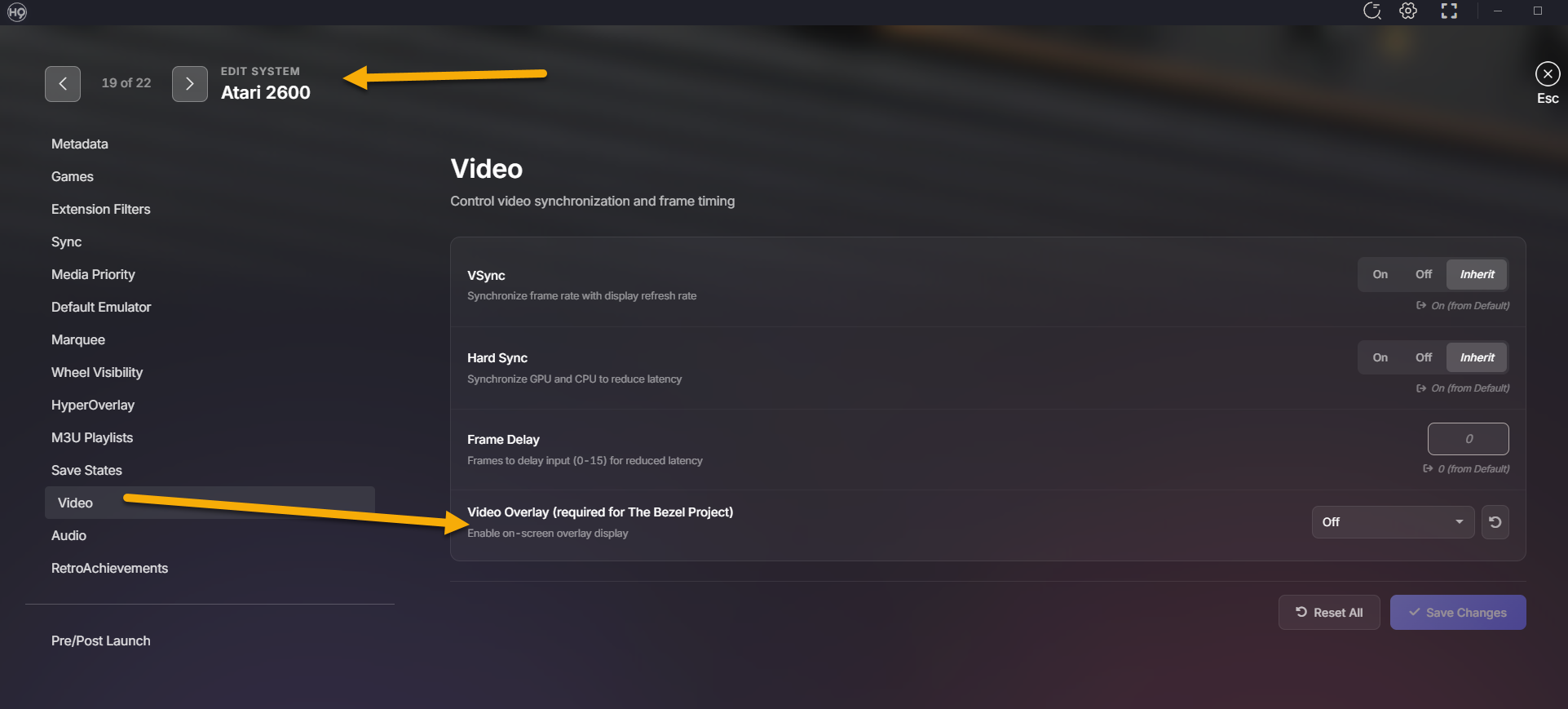
For one system:
- Open Systems.
- Select the system.
- Open Details.
- Confirm Default Emulator uses RetroArch.
- Open Video.
- Set Video Overlay (required for The Bezel Project) to On or Off.
- Select Save Changes.
HyperHQ changes the RetroArch overlay setting. Your bezel or overlay files still need to exist in RetroArch.